


Introduction
People who follow me might have heard me complain about plugwise and their poor service and late delivery. So I have at least some mixed feelings about plugwise, to say the least.
But their product is awesome and works.
So what does plugwise do I hear you ask. Well, you plug them in to an electricity socket and then you plug your device into the plugwise. You can now see how much electricity the device or devices are using and you can turn them on or off from a distance or via a schedule. This opens lots of opportunities. The bad part, their software only works on windows and you need a Zigbee compatible USB-stick to communicate with them. Their are some efforts to make them work on linux and I even read that you can control them via the Raspberry Pi. This opens lots of opportunities. One being that I can build my own webserver to control the devices and then log in to that server from my phone, tablet or other computers that has a browser. And so today I got it working.
You can read all on the plugwise website.
Source
I will use the builtin webserver from the source software to communicate with. For this you need to open the source software.
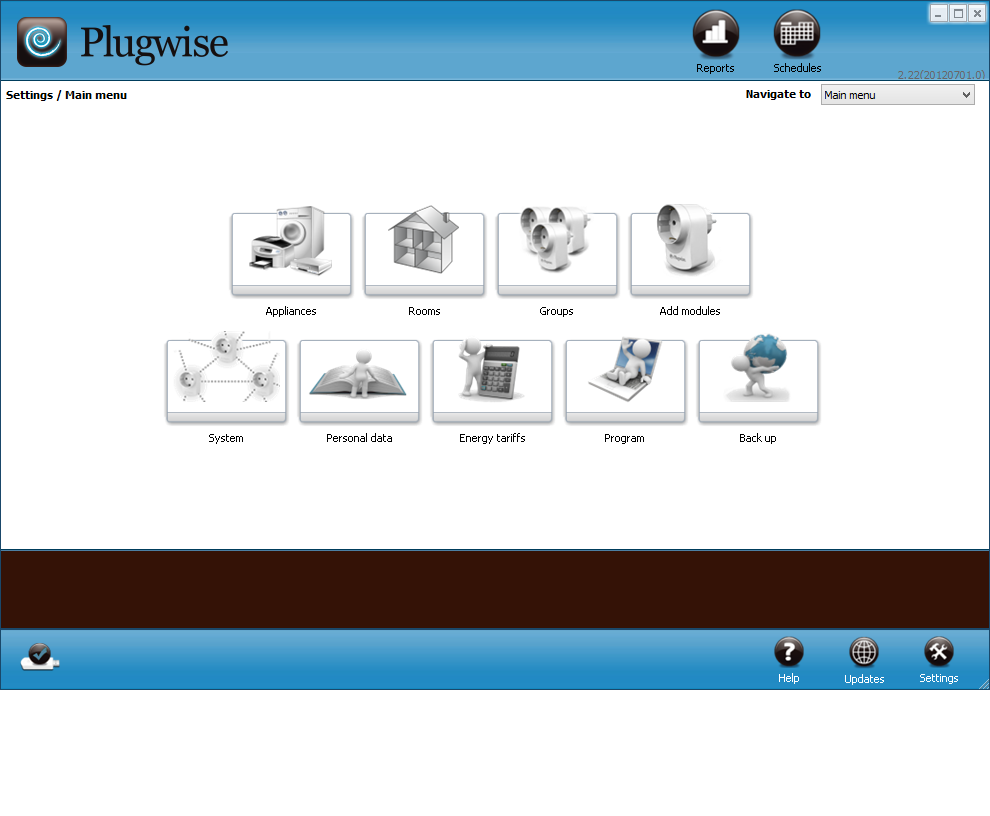
Then click on Program and Enable the webserver.
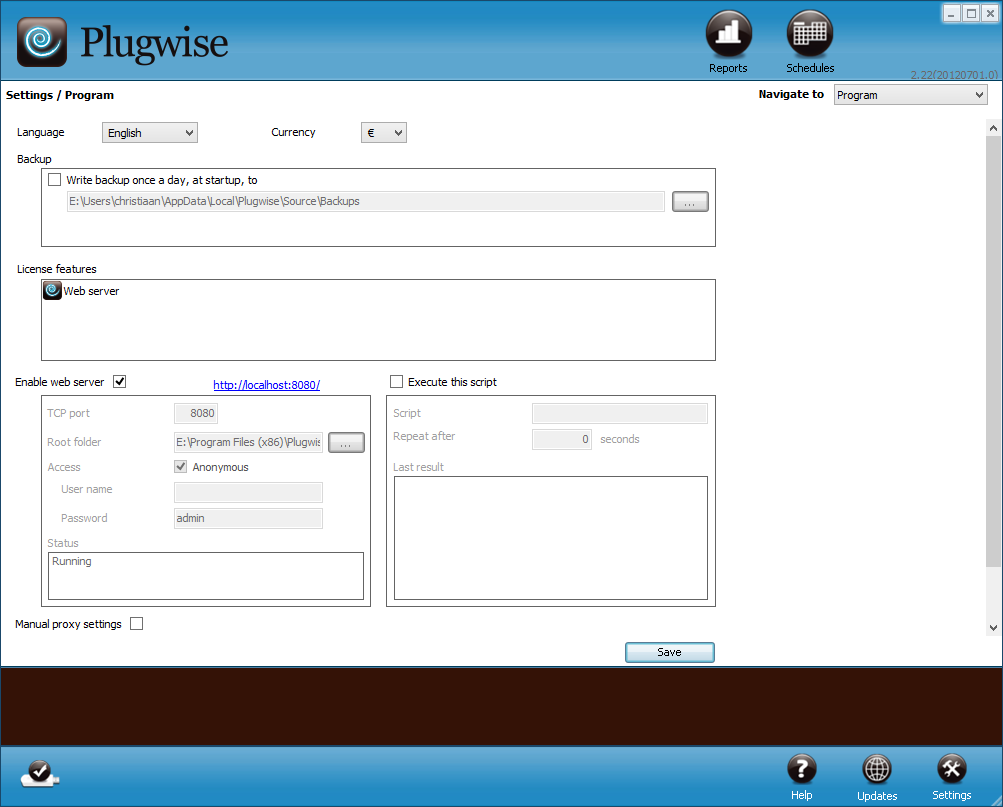
you can now just browse to http://localhost:8080 and see your modules and their energy consumption and you can turn them on or off.
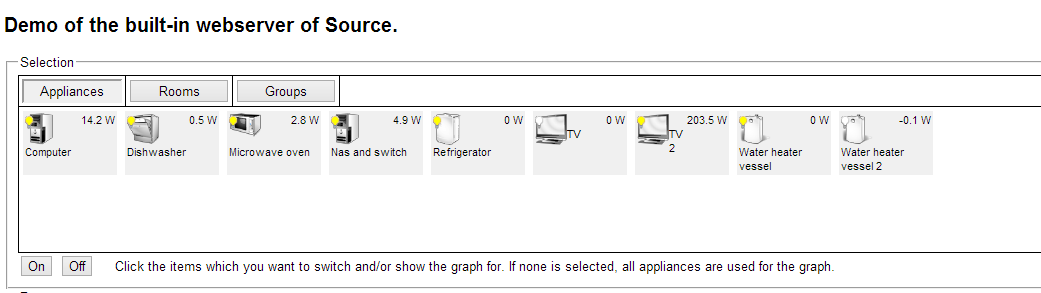
I could now just adapt those files. But it will be easier if I just create a second webapplication that talks to that server. This way I can program it like I want.
Nancy
So how do talk to that server and get information. Easy. Well not really. Anyway. Go to you program files (x86) folder search for plugwise then Plugwise Source then www where the webpage hides and then the xml folder. In this folder you will find two files. appliances.xml and blocks.xml.
If you open the aplliances.xml file it will look like this.
<% include '/xml/blocks.xml' %>
<PlugwiseSource Version="1.0">
  <Appliances>
<%
  foreach Plugwise.Appliances
    Write System.Blocks['xml_Appliance']
  /foreach
%>
  </Appliances>
<Modules>
<%
  foreach Plugwise.Modules
    Write System.Blocks['xml_Module']
  /foreach
%>
  </Modules>
</PlugwiseSource>```
That is weird. That looks like a scripting language. And it is.

If you go to http://localhost:8080/xml/appliances.xml you will see this.

```xml
This XML file does not appear to have any style information associated with it. The document tree is shown below.
<PlugwiseSource Version="1.0">
<Appliances>
<Appliance Id="1" Name="Computer" Type="computer_desktop" PowerUsage="14,2000" TotalUsage="0,86" PowerState="on" Module="3" Image="/sysimg/32/computer_desktop_on.png"/>
<Appliance Id="3" Name="Dishwasher" Type="dishwasher" PowerUsage="0,0000" TotalUsage="0,08" PowerState="on" Module="10" Image="/sysimg/32/dishwasher_on.png"/>
<Appliance Id="7" Name="Microwave oven" Type="oven_microwave" PowerUsage="2,5000" TotalUsage="0,05" PowerState="on" Module="7" Image="/sysimg/32/oven_microwave_on.png"/>
<Appliance Id="9" Name="Nas and switch" Type="computer_desktop" PowerUsage="4,9000" TotalUsage="0,62" PowerState="on" Module="9" Image="/sysimg/32/computer_desktop_on.png"/>
<Appliance Id="8" Name="Refrigerator" Type="refrigerator" PowerUsage="0,0000" TotalUsage="0,55" PowerState="on" Module="8" Image="/sysimg/32/refrigerator_on.png"/>
<Appliance Id="2" Name="TV" Type="tv" PowerUsage="-0,2000" TotalUsage="0,57" PowerState="off" Module="4" Image="/sysimg/32/tv_off.png"/>
<Appliance Id="6" Name="TV 2" Type="tv" PowerUsage="204,8000" TotalUsage="3,08" PowerState="on" Module="2" Image="/sysimg/32/tv_on.png"/>
<Appliance Id="4" Name="Water heater vessel" Type="water_heater_vessel" PowerUsage="0,0000" TotalUsage="1,11" PowerState="on" Module="11" Image="/sysimg/32/water_heater_vessel_on.png"/>
<Appliance Id="5" Name="Water heater vessel 2" Type="water_heater_vessel" PowerUsage="0,0000" TotalUsage="6,71" PowerState="off" Module="5" Image="/sysimg/32/water_heater_vessel_off.png"/>
</Appliances>
<Modules>
<Module Id="6" Name="278C42A" MAC="000D6F000278C42A" Type="-1"/>
<Module Id="1" Name="278683C" MAC="000D6F000278683C" Type="0"/>
<Module Id="3" Name="2786B62" MAC="000D6F0002786B62" Type="2" PowerUsage="14,1655" RelayState="closed" Appliance="1"/>
<Module Id="4" Name="2786D98" MAC="000D6F0002786D98" Type="2" PowerUsage="-0,1812" RelayState="open" Appliance="2"/>
<Module Id="7" Name="2786DA0" MAC="000D6F0002786DA0" Type="2" PowerUsage="2,4894" RelayState="closed" Appliance="7"/>
<Module Id="10" Name="2786F1D" MAC="000D6F0002786F1D" Type="2" PowerUsage="0,0000" RelayState="closed" Appliance="3"/>
<Module Id="8" Name="278B571" MAC="000D6F000278B571" Type="2" PowerUsage="0,0000" RelayState="closed" Appliance="8"/>
<Module Id="11" Name="278B5C5" MAC="000D6F000278B5C5" Type="2" PowerUsage="0,0000" RelayState="closed" Appliance="4"/>
<Module Id="9" Name="278B834" MAC="000D6F000278B834" Type="2" PowerUsage="4,8539" RelayState="closed" Appliance="9"/>
<Module Id="5" Name="278C37A" MAC="000D6F000278C37A" Type="2" PowerUsage="0,0000" RelayState="open" Appliance="5"/>
<Module Id="2" Name="D35C4B" MAC="000D6F0000D35C4B" Type="1" PowerUsage="204,7996" RelayState="closed" Appliance="6"/>
</Modules>
</PlugwiseSource>```
Yep that is all the information we need to make a website.

We can now create our nancy website, which you can [find on github][2].

I guess you all know how to make modules and views and the rest to get it to work.

And here is a service to read the data.

```csharp
IList<PlugwiseApplianceModel> FindAll()
        {
            var xml = XDocument.Load("http://localhost:8080/xml/appliances.xml");

            var q = from b in xml.Descendants("Appliance")
            select new PlugwiseApplianceModel
            {
                Name = b.Attribute("Name")==null?"":b.Attribute("Name").Value,
                Id = b.Attribute("Id") == null ? "" : b.Attribute("Id").Value,
                TotalUsage = b.Attribute("TotalUsage") == null ? "" : b.Attribute("TotalUsage").Value,
                Type = b.Attribute("Type") == null ? "" : b.Attribute("Type").Value,
                PowerUsage = b.Attribute("PowerUsage") == null ? "" : b.Attribute("PowerUsage").Value,
                PowerState = b.Attribute("PowerState") == null ? "" : b.Attribute("PowerState").Value,
                Image = b.Attribute("Image") == null ? "" : b.Attribute("Image").Value,
                Module = b.Attribute("Module") == null ? "" : b.Attribute("Module").Value
            };
            return q.ToList();
        }```
Easy as Pie.

The clue is in the blocks.xml file where they format the output.

```xml
<%
 format 'Module.PowerUsage' as '{0:0.0000}'
 format 'Appliance.PowerUsage' as '{0:0.0000}'
 format 'Appliance.TotalUsage' as '{0:0.00}'
%>
<% block 'xml_Appliance'%>
<Appliance Id="<%=.Id%>" Name="<%=.Name%>" Type="<%=.Type%>" PowerUsage="<%=.PowerUsage%>" TotalUsage="<%=.TotalUsage%>" PowerState="<%=.PowerState%>" Module="<%=.Module.Id%>" Image="<%$_Base%>/sysimg/32/<%=.StatusImageName%>.png" />
<%/block%>
<% block 'xml_Module'%>
<Module Id="<%=.Id%>" Name="<%=.Name%>" MAC="<%=.MACAddress%>" Type="<%=.Type%>" <%if .Type>0%> PowerUsage="<%=.PowerUsage%>" RelayState="<%=.RelayState%>" Appliance="<%=.Appliance.Id%>" <%/if%> />
<%/block%>
<% block 'xml_Group'%>
<Group Id="<%=.Id%>" Name="<%=.Name%>" />
<%/block%>
<% block 'xml_Room'%>
<Room Id="<%=.Id%>" Name="<%=.Name%>" Appliances="<%=.Appliances%>" />
<%/block%>
As you can see I added the blocks for Group and Rooms.
I for one made a modules.xml to get that data seperatly from the appliances and I made a rooms.xml to get the rooms data.
I also made a module.xml to get the data from a given module.
<% include '/xml/blocks.xml' %>
<PlugwiseSource Version="1.0">
  <Groups>
<%
  $param = Request.Get["moduleid"]
  $module = Module($param)
%>
<Module Id="<%=$module.Id%>" Name="<%=$module.Name%>" MAC="<%=$module.MACAddress%>" Type="<%=$module.Type%>" <%if $module.Type>0%> PowerUsage="<%=$module.PowerUsage%>" RelayState="<%=$module.RelayState%>" Appliance="<%=$module.Appliance.Id%>" <%/if%>
/>
  </Groups>
</PlugwiseSource>
Which you can call like this http://localhost:8080/xml/module.xml?moduleid=6
So that is how this all works.
And this is what it looks like for now.
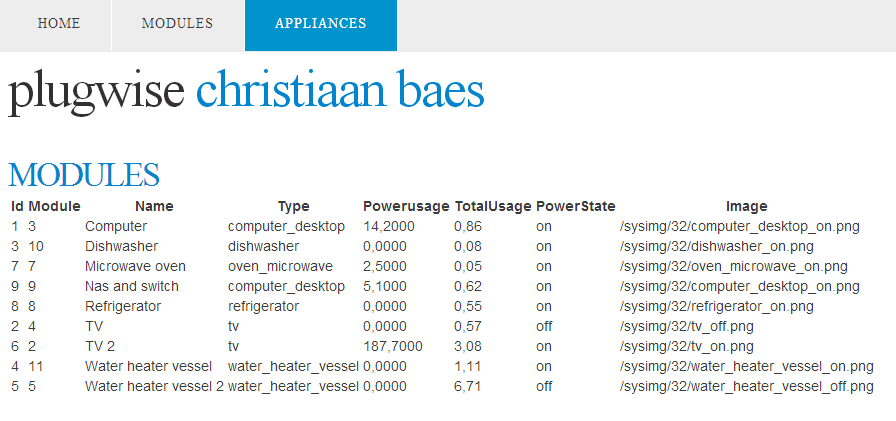
But I’m sure you can imagine where we are going with this. It will be easy to add a mobile version and so on. It was getting started that was difficult, since there is not to much documentation to learn from or examples.
Conclusion
It is fairly simple to get this to work. Now I just need to buy a cheap, low energy consuming PC that runs Windows and that can serve as webserver.
And yes the next step is to be able to turn on and off the modules. But that is simple if you read the documentation.
 Chris is awesome.