

Login or Sign Up to become a member!
LessThanDot Sit Logo

LessThanDot

System Admins

Less Than Dot is a community of passionate IT professionals and enthusiasts dedicated to sharing technical knowledge, experience, and assistance. Inside you will find reference materials, interesting technical discussions, and expert tips and commentary. Once you register for an account you will have immediate access to the forums and all past articles and commentaries.

LTD Social Sitings

Lessthandot twitter Lessthandot Linkedin Lessthandot friendfeed Lessthandot facebook Lessthandot rss

Note: Watch for social icons on posts by your favorite authors to follow their postings on these and other social sites.

Your profile

    Search

    XML Feeds

    Google Ads

    « Don't fall for the social engineering scam that makes you go to ammyy.comLulzSec has shut down, has ended hacking campaign »
    comments

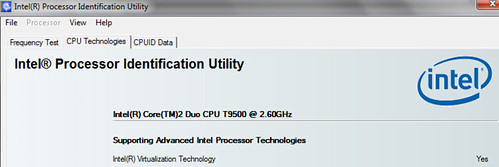
    If your processor does not support Virtualization Technology then you can't run Windows 8 in Virtual Box....you will get a black screen of death. In order to find out if your CPU supports hardware Virtualization Technology you can download the Intel Processor Identification Utility here http://www.intel.com/p/en_US/support/highlights/processors/toolspiu/

    Run it and look if Virtualization Technology is enabled...see the bottom of this picture
    Intel Processor Identification Utility

    if it is enabled then you need to turn it on in your BIOS, to see how to configure BIOS, go to this page http://www.microsoft.com/windows/virtual-pc/support/configure-bios.aspx

    After BIOS has been configured, you need to do a reboot, shut down, wait about 10 seconds and then start up again.

    Now you are ready to make the changes in Virtual Box
    Click on settings, then system and then on the motherboard tab, click on Enable IO APIC
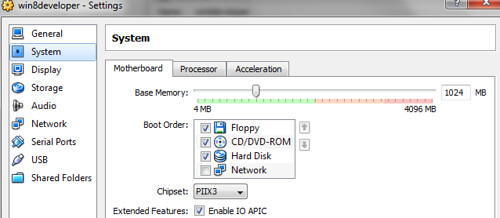
    Enable IO APIC


    On the Processor tab, click on Enable PAE/NX
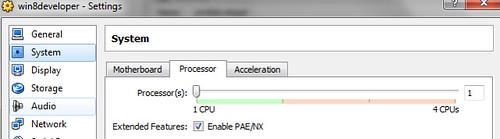
    Enable PAE_NX


    Finally on the Acceleration tab, click on both Enable VT-x/Amd-v and Enable Nesting Paging
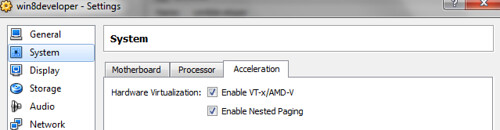
    EnableVT

    Now you are all set...have fun

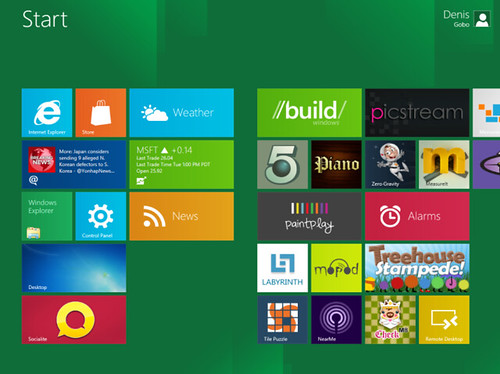
    windows 8 metro start screen

    About the Author

    User bio imageDenis has been working with SQL Server since version 6.5. Although he worked as an ASP/JSP/ColdFusion developer before the dot com bust, he has been working exclusively as a database developer/architect since 2002. In addition to English, Denis is also fluent in Croatian and Dutch, but he can curse in many other languages and dialects (just ask the SQL optimizer) He lives in Princeton, NJ with his wife and three kids.

    Social SitingsTwitterFacebookLinkedInHomePageFlickrLTD RSS Feed
    27540 views
    InstapaperVote on HN

    14 comments

    Comment from: Not working [Visitor]
    Not working I'm trying the 32 bit developer preview on Virtual Box 4.0.12 with Host as a WinXpSP3 system. Even with the above settings I keep getting a "computer needs to restart" error. Anyone faced/solved this issue?
    09/14/11 @ 02:13
    Comment from: SQLDenis [Member] Email
    SQLDenis Did you change it in the BIOS?
    09/14/11 @ 02:51
    Comment from: mahen23 [Visitor]
    mahen23 What version of Virtualbox is required? I have 4.0.0
    09/14/11 @ 03:03
    Comment from: Not working [Visitor]
    Not working My BIOS has virtualization enabled already. Do I need to change any other settings?
    09/14/11 @ 03:10
    Comment from: SQLDenis [Member] Email
    SQLDenis mahen23 I have VirtualBox 4.0.6
    09/14/11 @ 03:15
    Comment from: SQLDenis [Member] Email
    SQLDenis Not working.....All I did was enable VT in the BIOS, shutdown, restart and then did the 3 things in VirtualBox as described in this post and voila

    I do want to point out that I picked windows 7 as the OS when creating this windows 8 virtual machine
    09/14/11 @ 03:16
    Comment from: Not working [Visitor]
    Not working @SQLDenis: You were right. Even though the intel utility sowed virtualization was enabled, it was Disabled in BIOS. Working after enabling that. Thanks!
    09/14/11 @ 03:31
    Comment from: sep332 [Visitor]
    sep332 Thanks, this works great!
    09/14/11 @ 09:13
    Comment from: wundie [Visitor]
    wundie Has anyone had an issue on Virtual Box where you're only able to click on certain icons? For example, I can launch the control panel or desktop with a single click but when I try the IE tile it just moves and nothing happens. I can go to the desktop and launch IE without issue. Not sure what to try….

    [Win7 x64 host running VB 4.1 attempting Windows Developer Preview with developer tools English, 64-bit (x64)]
    09/14/11 @ 09:16
    Comment from: SQLDenis [Member] Email
    SQLDenis wundie ,

    I had that issue initially....then I rebooted the virtual machine and it started to work
    09/14/11 @ 09:23
    Comment from: Dheeraj [Visitor] Email
    Dheeraj Hi All. I have tried all the mentioned steps above. Shutdown and rebooted several times, but still the error keeps popping up 0x000000
    Please Help
    09/21/11 @ 12:31
    Comment from: Dheeraj [Visitor]
    Dheeraj OK. GOOD NEWS GUYS. SPREAD THE WORD. The issue is resolved. For people who have enabled Virtualization in their BIOS, but still are getting the 0x00000 error, there is one and only one solution. I promise it works. Its a small edit in a file that you need to do. I can't disclose it here, people can email me at dheerajpoojari@yahoo.com for resolutions.
    09/21/11 @ 14:31
    Comment from: Mihai [Visitor] Email
    Mihai why I can't see the Acceleration Tab ?
    10/25/11 @ 20:22
    Comment from: pinky [Visitor] Email
    pinky i installed it on vmware player. i choose OS as 'other'. but the problem i couldn't accesses internet. no usb support. no vmware tools available
    04/02/12 @ 09:51

    Leave a comment


    Your email address will not be revealed on this site.

    To mislead the spambots.

    Your URL will be displayed.
    (Line breaks become <br />)
    (Name, email & website)
    (Allow users to contact you through a message form (your email will not be revealed.)