


Introduction
Last week I asked if Spek was on a Maven repository so I could easily add it to my project and test it.
Someone who will remain anonymous (who still needs to wash my car) and runs the Spek project told me it wasn’t and that I could be so nice to add it.
I know next to nothing about Maven, except that it exists. So I went on the Google and found… a lot of things that I didn’t know about. But in the end I found this.
And that helped just a little.
Setting up Maven
Apparently everybody knows how to set up Maven but forget to tell how it is done.
So first of all I downloaded Maven 3.0.4 and then unzipped that in the Program files folder (x86). Then I had to add this E:Program Files (x86)apache-maven-3.0.4bin to my Path in the System Variables whiyou can find in Control Panel -> System -> Advanced settings -> Environment variables. I also needed to add the system variable JAVA_HOME and set it to this E:Program Files (x86)Javajdk1.7.0jre or the path to your jre of your JDK.
You can also add the system variable M2_HOME and set it to this E:Program Files (x86)apache-maven-3.0.4 or not. You can choose to add it manually to your module too.
If you get this error
Error running kotlindeom [test]: No valid Maven installation found. Either set the home directory in the configuration dialog or set the M2_HOME environment variable on your system.
then the above did not work. In Intellij go to File -> Settings -> Maven and copy the Maven directory in the Maven home directory field.
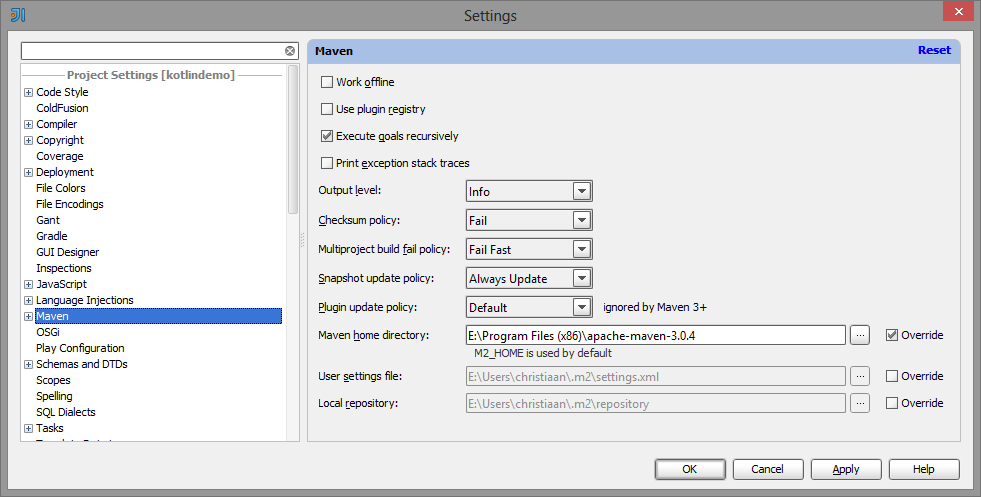
And now Maven works with Intellij 12. Oh joy.
MavenModule
It is now time to make our project.
Make a new project and make it a Maven module.
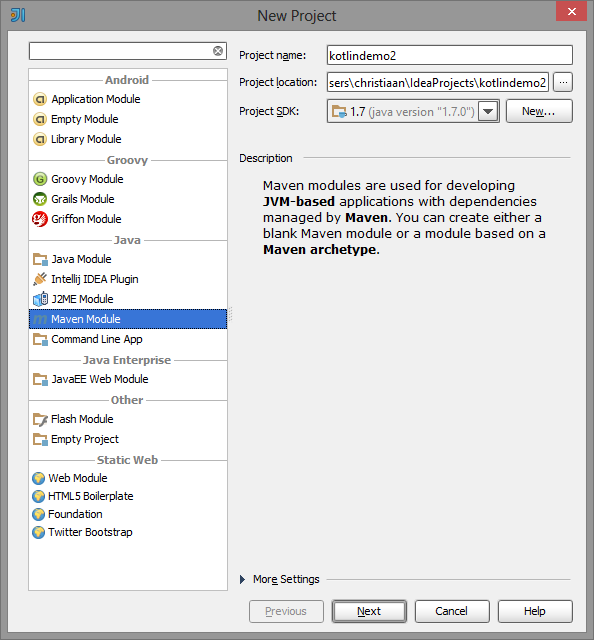
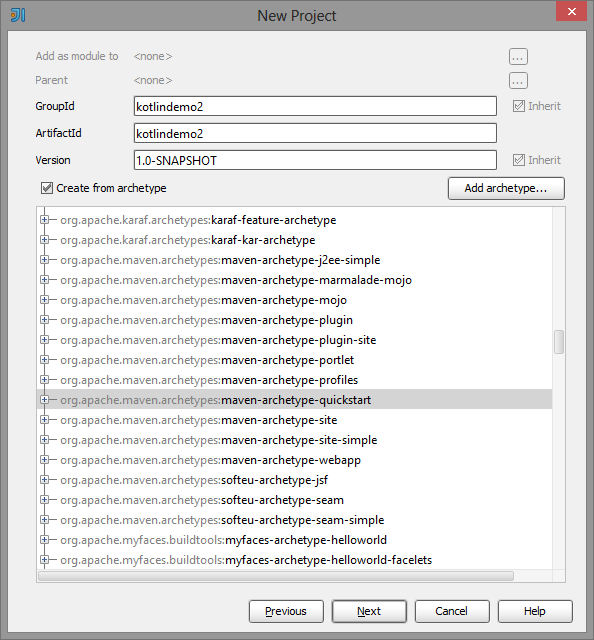
use the quickstart archetype, or any other archetype since we are not going to use it anyway.
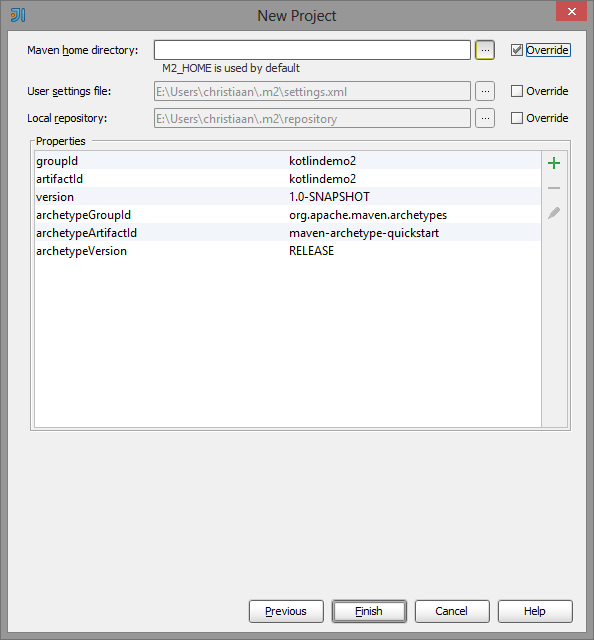
override the maven home directory if you did not set M2_HOME or if you so desire.
Now we can change the pom.xml file to this.
<project xmlns="http://maven.apache.org/POM/4.0.0" xmlns:xsi="http://www.w3.org/2001/XMLSchema-instance"
  xsi:schemaLocation="http://maven.apache.org/POM/4.0.0 http://maven.apache.org/xsd/maven-4.0.0.xsd">

    <modelVersion>4.0.0</modelVersion>

    <groupId>kotlindemos</groupId>
    <artifactId>kotlindeom</artifactId>
    <version>1.0-SNAPSHOT</version>

    <properties>
        <kotlin.version>0.1-SNAPSHOT</kotlin.version>
        <junit.version>4.11</junit.version>
        <project.build.sourceEncoding>UTF-8</project.build.sourceEncoding>
    </properties>

    <dependencies>
        <dependency>
            <groupId>org.jetbrains.kotlin</groupId>
            <artifactId>kotlin-stdlib</artifactId>
            <version>${kotlin.version}</version>
        </dependency>

        <dependency>
            <groupId>junit</groupId>
            <artifactId>junit</artifactId>
            <version>${junit.version}</version>
            <scope>test</scope>
        </dependency>
    </dependencies>

    <build>
        <sourceDirectory>${project.basedir}/src/main</sourceDirectory>
        <testSourceDirectory>${project.basedir}/src/test</testSourceDirectory>

        <plugins>
            <plugin>
                <artifactId>kotlin-maven-plugin</artifactId>
                <groupId>org.jetbrains.kotlin</groupId>
                <version>${kotlin.version}</version>

                <configuration/>
                <executions>
                    <execution>
                        <id>compile</id>
                        <phase>compile</phase>
                        <goals>
                            <goal>compile</goal>
                        </goals>
                    </execution>
                    <execution>
                        <id>test-compile</id>
                        <phase>test-compile</phase>
                        <goals>
                            <goal>test-compile</goal>
                        </goals>
                    </execution>
                </executions>
            </plugin>
        </plugins>
    </build>

    <repositories>
        <repository>
            <id>jetbrains-all</id>
            <url>http://repository.jetbrains.com/all</url>
        </repository>
    </repositories>

    <pluginRepositories>
        <pluginRepository>
            <id>jetbrains-all</id>
            <url>http://repository.jetbrains.com/all</url>
        </pluginRepository>
    </pluginRepositories>
</project>
If everything is well you should not see any red in there.
Does it work?
Now we can start adding our kotlin files in.
Create a package kotlin.kotlindemo in the main and remove the package java. Add a kotlin file to that and use this code.
```java package demo
data class MyClass(val i : Int, val s : String)``` Now add a kotlin.kotlindemo package to the test folder and add a kotlin file.
With this code.
```java package demo.test
import demo.MyClass import kotlin.test.assertEquals import org.junit.Test as test import kotlin.test.assertTrue import kotlin.test.assertFalse
public class TestMyClass { test fun IfPropertyIIsSetCorrectly() { val c1 = MyClass(1,“t”) assertEquals(1,c1.i) }
test fun IfPropertySIsSetCorrectly()
{
    val c1 = MyClass(1,"t")
    assertEquals("t",c1.s)
}

test fun If2MyClassesWithTheSamePropertiesAreEqual()
{
    val c1 = MyClass(1,"t")
    val c2 = MyClass(1,"t")
    assertTrue(c1.equals(c2))
}

test fun If2MyClassesWithDifferentPropertiesAreNotEqual()
{
    val c1 = MyClass(1,"t")
    val c2 = MyClass(2,"t")
    assertFalse(c1.equals(c2))
}

test fun IfToStringReturnsTheCorrectString()
{
    val c1 = MyClass(1, "t")
    assertEquals("MyClass(i=1, s=t)",c1.toString())
}
}``` You might think this is the same class as in my previous blogpost but it isn’t. My previous class was called testMyClass and by convention Maven only finds Test*, *Test or TestCase* classes. I found that out the hard way. Lucky me.
Anyway, your project should look like this.
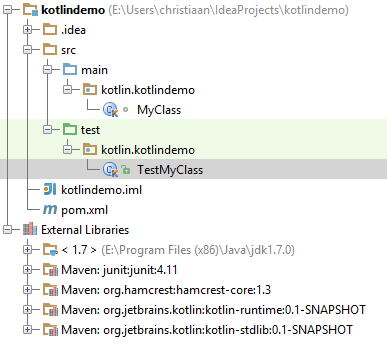
And now when we open our Maven project view. we should see this.
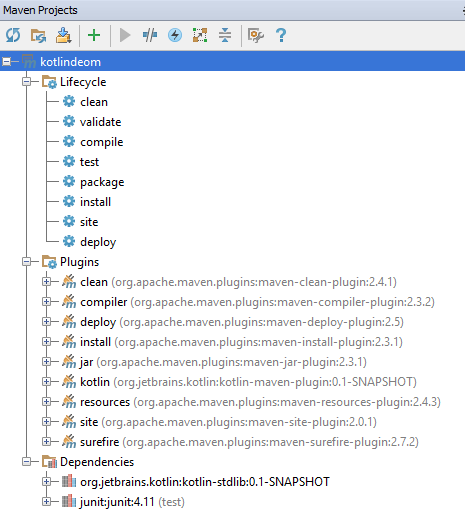
you can now doubleclick on test and see the magic happen.
This should be the result.
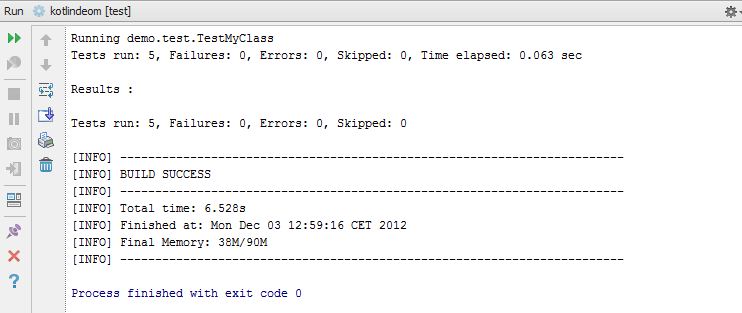
5 tests run and none faild. Woohoo.
Conclusion
It took me a while to get it to work since I could not find Maven and IntelliJ for dummies and the Maven site is full of XML. But it works and I’m happy. Now on to Spek and getting the package into a repo, be afraid, be very afraid.
 Chris is awesome.