


The always amazing Paul Stack has released his very first edition of teamcitysharp and I though it a good idea to try it.
If you don’t know what teamcity is then you are missing out. No need to hold back either since it is free for personal use and some other uses.
For people that use Teamcity it is always useful if you can spread your stats around and show the managers what you are doing and how good you are doing. Managers love shiny things. So I made this shiny thing in less then ten minutes so the managers can now see how well I’m doing.
You would also like to keep it simple for your manager.
My statusboard looks like this.
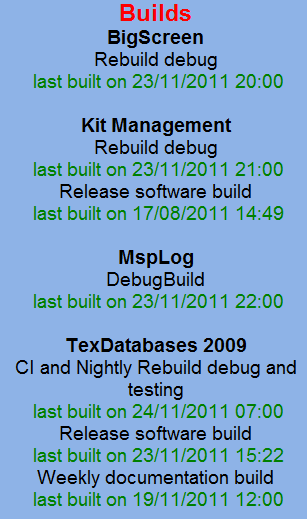
And yes I made that just now in less than ten minutes.
Here is how I connected tot the teamcity server
var client = new TeamCityClient("url:port");
client.Connect("username", "password");
the url is the url to the server but without the http:// in front of it.
This is how I got all the information you see in that status.
var projects = client.AllProjects();
RtfUtils.RtfRedSizeplus3(Text, "Builds");
foreach(var project in projects)
{
  RtfUtils.RtfBlackBold(Text, project.Name);
  foreach(var config in client.BuildConfigsByProjectId(project.Id))
  {
    var lastBuild = client.LastBuildByBuildConfigId(config.Id);
    RtfUtils.RtfBlackNormal(Text, config.Name);
    if (lastBuild.Status == "SUCCESS")
    {
      RtfUtils.RtfGreenNormal(Text, " last built on " + DateTime.ParseExact(lastBuild.StartDate, "yyyyMMddTHHmmsszzzzz", System.Globalization.CultureInfo.InvariantCulture).ToString("dd/MM/yyyy HH:mm"));
    }
    else
    {
      RtfUtils.RtfRedNormal(Text, " last built on " + DateTime.ParseExact(lastBuild.StartDate, "yyyyMMddTHHmmsszzzzz", System.Globalization.CultureInfo.InvariantCulture).ToString("dd/MM/yyyy HH:mm"));
    }
  }
  RtfUtils.RtfBlackBold(Text, "");
}
The important things are the client.AllProjects() which gets you all the projects. The client.BuildConfigsByProjectId(project.Id) which gets you all the Buildconfigsfor that project. And client.LastBuildByBuildConfigId(config.Id) which will get you the latest build information of that build. On success I then color the text green and on failure I color it red.
So there, simple enough.
But remember this is version 0.1 so a few features are still missing. But I’m sure Paul will add them all over the weekend ;-).
 Chris is awesome.