


The ability to be dynamic in your work with SSIS promotes the ability to develop much more scalable packages which are easier to maintain and transport from development to user acceptance testing to production. As an ETL developer or administrator, you will also have the ability to easily maintain upgrades, migrations and new implementations into the landscape by making packages as dynamic in nature as possible.
Variables are a key piece in this concept and have been since the advent of any development platform. If you’ve ever written a program in any language or on any platform or framework, you may already have a grasp of the importance of variables. Imagine writing one of those programs or scripts without having variables or constants. Writing one may not be hard to accomplish but executing them in a moving business model would prove to be more than cumbersome. SSIS and variable usage has few limitations when it comes to setting property values for tasks and components. This is advanced further in that the developer is given the ability to set variable values on execution of packages. This promotes mobility in packages by using them in the same manner as methods are used in the .NET Framework.
Below, we’re going to work through several essential tasks that are most common in every SSIS installation with variable usage. We’ll also go through the foreach loop container to show how variables can create extremely mobile file processing routines.
The business requirement for file processing
The business has asked us to create a new ETL process that will import bank transmissions data in csv fomart residing in an FTP directory, into an existing database. The files are loaded into the directory every 5 minutes and contain data that is critical to the business financial services.
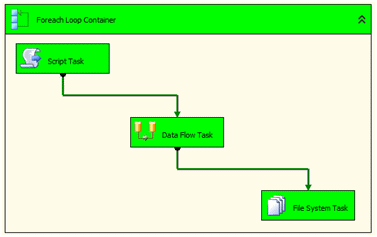
To complete this process we will employ the foreach loop container along with a script task to handle certain variable settings during runtime, a data flow task that imports the data from each file and then a file system task that will archive the previously processed files.
Setting up a foreach with variables
The foreach loop container gives us the ability to enumerate a directory while processing all files or a specific grouping of files based on the naming conventions we use. For import purposes, this container can be extremely powerful and provide hands off processing of files. To show this and how variables in nature can make the container more useful, we’re going to use the container in our process that is required of us to accomplish.
Setting up the container is the first step. The initial setting we’ll need is the type of enumeration-which is file in our case, and then the folder and files we want. The file pattern is typical of any other commonly used file selection. The wildcard * is utilized to match all with a static string parameter. In this case, *.csv is used to find only files with names that end in .csv.
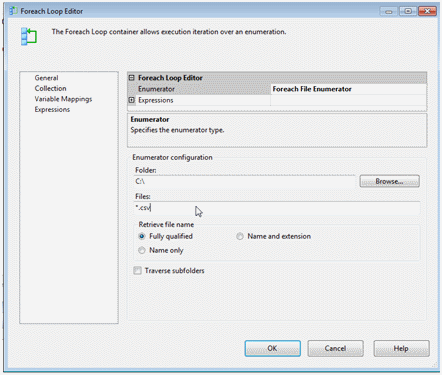
The next section under the variable mappings is crucial to the functional loop through all the files in the folder. This will allow us to set the index of the file name currently focused in a variable so we can utilize it through the flow of the import.
Drop down the Variable selection and select “
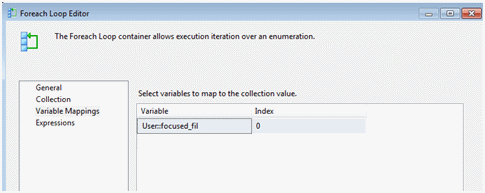
The container is now setup to enumerate the files in our folder and set for each iteration, the file focused on name value to the variable User::focused_fil
Variables in a script task
The script task in our example shows just how we can access variables in this powerful task. When we open the script task editor, we will see in the initial panel that there are two types of protocols to access variables; ReadOnlyVariables and ReadWriteVariable. These settings allow us to set explicitly set how the variables are used. ReadOnly will provide a constant while ReadWrite allows for this to truly act as a variable type we can assign values to and manipulate values to. For this exercise we’ll show both examples. In order to log the file processing, we will extract the name and set the value of a processed variable. The processed variable setting will be used later for notification usage to show us how to work with variables in the script task.
We want focused_fil to be a constant in our script task so add it to the ReadOnlyVariables collection. Next add a variable to the package container scope named processed as a string data type and in the ReadWriteVariables collection. This will be used to determine what we email the DBA to state if the file was processed.
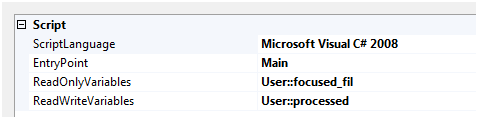
Now going into the designer we have the ability to read the focused_fil variable in order to make decisions on setting the processed variable. To do this in SSIS 2008 you reference Dts and drill to the Variables. Use value to reference and set like below
Dts.Variables["processed"].Value = "File " + Dts.Variables["focused_fil"].Value + " processed @ " + System.DateTime.Now.ToString();
This results in setting the processed variable as “File document.xml processed @ {system date}”
More error handling can be added to accurately email the status of the files that were touched by the package and even move them to error folders or reprocessing folders later. This is where we start to see the power in error handling of variables and working them through the flow of the package.
If user::processed was a ReadOnly variable, these steps would error or provide results that are not wanted. Be sure to always set variables in the area you require them. It can prove to be a long debugging process when several dozen variables are misplaced or not added to these pointers.
Dynamic connections
Connections are the start and completion to most data flow tasks in a package. Variables can be used to really take advantage of setting properties in connections to scale them to connect to things as high level as a SQL Server instances, down to the forming of a connection string itself.
Reading, Dynamic SQL Server connections in Reporting Services goes in-depth on using connections dynamically.
This blog revolves around SSRS but there is a class named InstanceSearch that can be extremely handy in SSIS as well. You can test, set and connect to an instance using this class by dynamically seraching for the instances we need. In that class you can set variables using the syntax and method shown above by referencing the ReadWrite variable collection and setting it to a required value.
Once we’ve set the variable as needed and create a connection, you can dictate using variables what server and database we want to connect to. This is illustrated below for our data flow destination connection.
Data Flow Setup
Create a new connection by right clicking the connection managers area and select OLE DB connection. Click the New button to create a new connection and put “destination” in the server name of the connection and click OK to close it. This creates a connection to basically nothing at this point but gives us a shell to work with dynamically.
Create two new variables in the package container named, dest_conn and dest_db. Set these variables to string data types and enter static values for the instance and the initial catalog we want to connect to. Highlight the destination connection in the connection managers area to expose the properties of the connection in the properties window. In the properties window, click the browse button for expressions to open the property expression editor. Here we can set the connection string to what we want based on a real-time validated expression. To set a trusted connection we can build a connection string such as

After this, using the same property editor, we can set the initial catalog to complete the connection needs

We can do the same with our flat file source connection by using the variable User::focused_fil we set in our foreach container.
Right click the managers area and create a new flat file connection. To help setting mappings, a shell or initial CSV file is handy to preset the default settings of the connection for us. This can all be done dynamically either in script tasks or by setting columns manually in the advanced section of the editor. For our functional example we need to import bank id, back name, transaction number, amount into a transmissions table. The file is csv formed as below
bankid,bankname,transcode,amt
1,take your money bank 1,3737#219%4,3000.32
Saving this as C:transmission_1.csv we set the file location in the editor and then only need to set the file containing headers option to complete our mappings. Once this is all done, we use the same property settings through the expression settings of the flat file source as we did on the destination for setting the connection string to the file we set in the focused_fil variable.

Once we connect the flow to the destination we can open the destination editor to see how the variables are working for the destination. Drop down the table listing and you’ll see that the validation process will use the variables for the connection string and initial catalog to load the table listing in the editor. First success!
Recap
So far we’ve gone over the following ways to use variables
- Foreach container and file focus with variables
- Script task readonly and readwrite variables while setting them programmatically
- Flat file connections and dynamically setting the file connection
- SQL Server connections and dynamically setting the server name and initial catalog to connect to
Next we can finish it up with the process of moving the working files to an archived or processed directory. This will prevent them from being processed more than once and retain them for later validations.
Create one more variable named, archive. I set this to a static value of C:filesdone
We can already see that this newly added variable could be accompanied by another that shows the source of the files and could be used prior in the foreach container for the property values of source and also the initial connection of the flat file connection.
In our File System Task editor we only need to set 3 values with our variables in order to “archive” the processed file. The file system task also has the intelligence for you to tell it if the source and destination are going to be variables. This essentially will allow the processor to evaluate them and not show unwanted errors if directories do not exist at build time.
Set IsDestinationPathVariable and IsSourcePathVariable to True and set the following variables to the property assigned.
SourceVariable = User::focused_fil
DestinationVariable = User::archive
We want to move the file so there is no reprocessing occurring so change the operation method to Move over the default, Copy. Notice when this is completed and saved, there will be a warning on the file system task stating the variable is empty. To ensure the package compiles correctly, setting the focused file to the file we used as a shell to map our flat file source should be set to the focused_fil variable
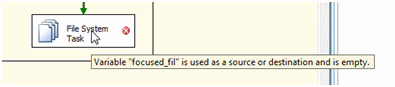
The script task is the place we can do these validations by using the System.IO and associated methods to check if the file exists that is stored in the focused file variable beforehand. We can avoid the static settings by working with the property values that way.
Now that we have gone over our finally functional example of using variables by dynamically setting a file archive operation, let’s run our new package created through these examples to see how it flows.
Our completed package execution
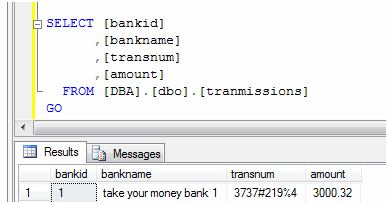
And our test one row of data transferred successfully
Closing
This entire process was controlled from setting variables and dictating what the tasks and components do in order to process the file and import into the correct table. This can all be set even further dynamically by assigning values to the variables at the point in time the package is executed. This allows you to move sources, destination and even folders with minimal maintenance to your SSIS packages.