


Since it is a day off for me today, I decided to give Amazon Relational Database Service a try. Amazon RDS has SQL Server, Oracle and MySQL as databases available.
You can try it out for free if you are a new AWS customer
Amazon RDS for SQL Server – Free Tier
New AWS customers can get started with Amazon RDS for SQL Server for free and receive the following Amazon RDS for SQL Server resources each month for free:
750 hours of Amazon RDS for SQL Server Micro DB Instance usage (running SQL Server Express Edition in a single Availability Zone) – enough hours to run a DB Instance continuously each month
20 GB of database storage
10 million I/Os
20 GB of backup storage for your automated database backups and any user-initiated DB Snapshots
Click here to learn more about the offer.
You can find all the details here: http://aws.amazon.com/rds/free/
Here is what is available for SQL Server
_Micro DB Instance
630 MB memory, Up to 2 ECU (for short periodic bursts), 64-bit platform, Low I/O Capacity, Provisioned IOPS Optimized: No
Small DB Instance
1.7 GB memory, 1 ECU (1 virtual core with 1 ECU), 64-bit platform, Moderate I/O Capacity, Provisioned IOPS Optimized: No
Medium DB Instance
3.75 GB memory, 2 ECU (1 virtual core with 2 ECU), 64-bit platform, Moderate I/O Capacity, Provisioned IOPS Optimized: No
Large DB Instance
7.5 GB memory, 4 ECUs (2 virtual cores with 2 ECUs each), 64-bit platform, High I/O Capacity, Provisioned IOPS Optimized: 500Mbps
Extra Large DB Instance
15 GB of memory, 8 ECUs (4 virtual cores with 2 ECUs each), 64-bit platform, High I/O Capacity, Provisioned IOPS Optimized: 1000Mbps
High-Memory Extra Large DB Instance
17.1 GB memory, 6.5 ECU (2 virtual cores with 3.25 ECUs each), 64-bit platform, High I/O Capacity, Provisioned IOPS Optimized: No
High-Memory Double Extra Large DB Instance
34 GB of memory, 13 ECUs (4 virtual cores with 3,25 ECUs each), 64-bit platform, High I/O Capacity, Provisioned IOPS Optimized: No
High-Memory Quadruple Extra Large DB Instance
68 GB of memory, 26 ECUs (8 virtual cores with 3.25 ECUs each), 64-bit platform, High I/O Capacity, Provisioned IOPS Optimized: 1000Mbps
Once you have signed up and have been verified over the phone, you can create an instance. Create a database is very very easy. You start up a wizard, fill in some info and you are ready to go.
Setting up an AWS RDS instance
Here is what the multi-step process looks like
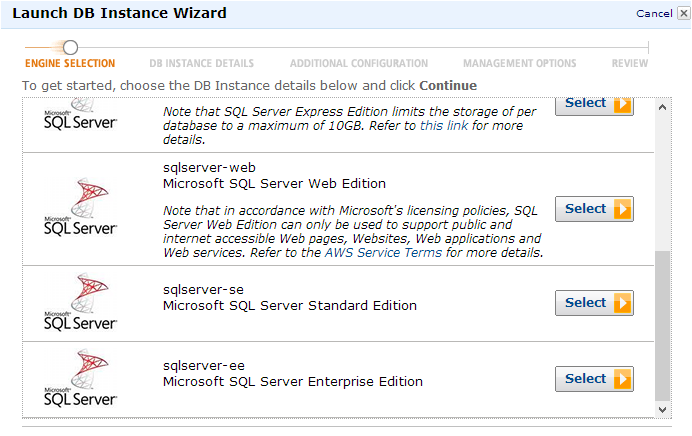
First you need to select the database engine, you can choose from MySQL, Oracle and SQL Server. Pick the edition that you want
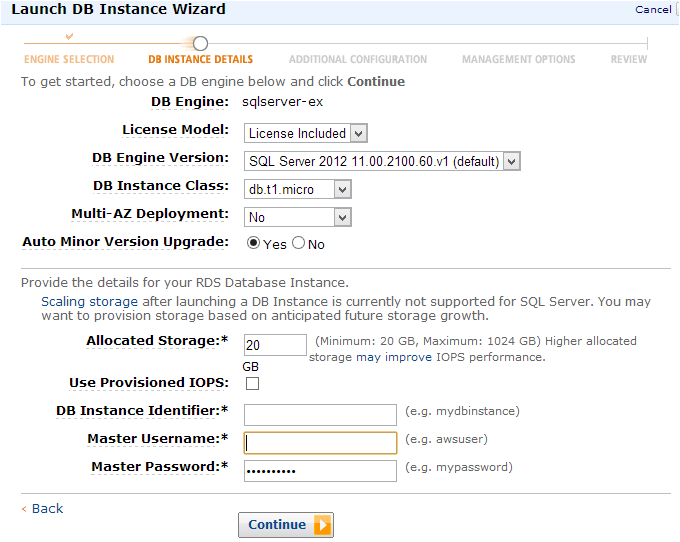
Give your database a name, specify storage, add a user and a password
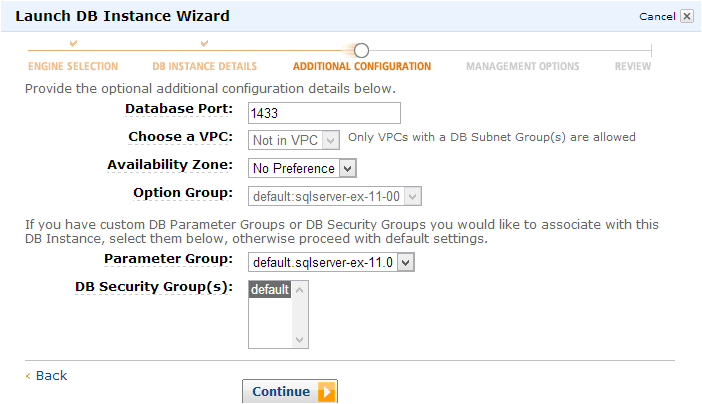
Pick the port, the availiblity zone
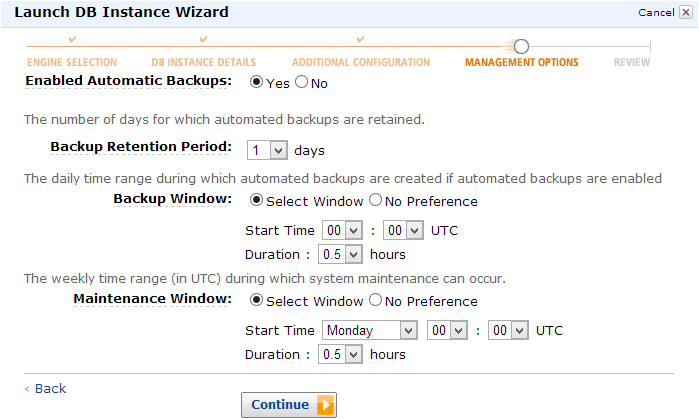
Specify the backup and maintenance windows as well as the retention period
Now it is all ready
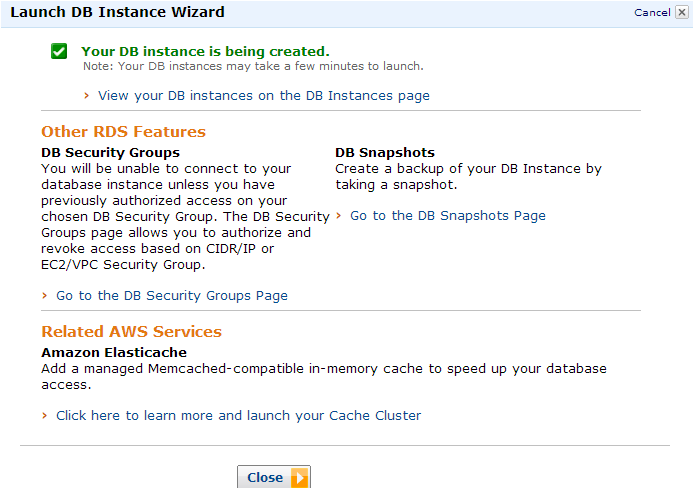
After this is all done, you will get a summary page where everything is displayed about your instance.
Next go to your db instance, it takes about 15 minutes before it is available. Click on the checkmark next to your instance and you will see something like this
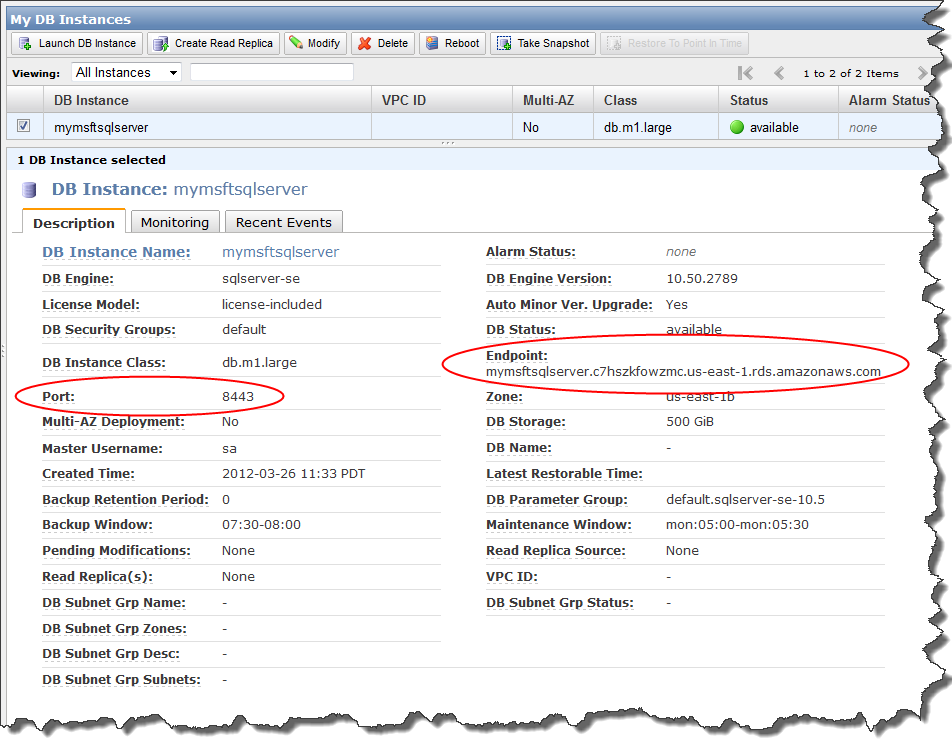
Notice the endpoint and the port? Remember those, you will need those to connect to your SQL server instance.
Setting up DB Security Groups
Before trying to connect you have to give access
DB Security Groups
Each DB security group rule enables a specific source to access a DB instance that is a member of that DB security group. The source can be a range of addresses (e.g., 203.0.113.0/24), or an EC2 security group. When you specify an EC2 security group as the source, you allow incoming traffic from all EC2 instances that use that EC2 security group. Note that DB security group rules apply to inbound traffic only; outbound traffic is not currently permitted for DB instances.
You do not need to specify a destination port number when you create DB security group rules; the port number defined for the DB instance is used as the destination port number for all rules defined for the DB security group. DB security groups can be created using the Amazon RDS APIs or the Amazon RDS page of the AWS Management Console.
Here is more info about Amazon RDS Security Groups http://docs.aws.amazon.com/AmazonRDS/latest/UserGuide/Overview.RDSSecurityGroups.html
Click on DB Security Groups

Click on details and add the CIDR/IP of your machine, you will see it displayed there ,you can just paste that in the box.
Now you are ready to connect to your AWS RDS instance
Paste the endpoint in the Servername box, add the user name and password. You should be all ready now. If you check for @@servername and @@version, you should see something like this

Take a look at your dashboard, check out everything that is available. Here is what monitoring looks like
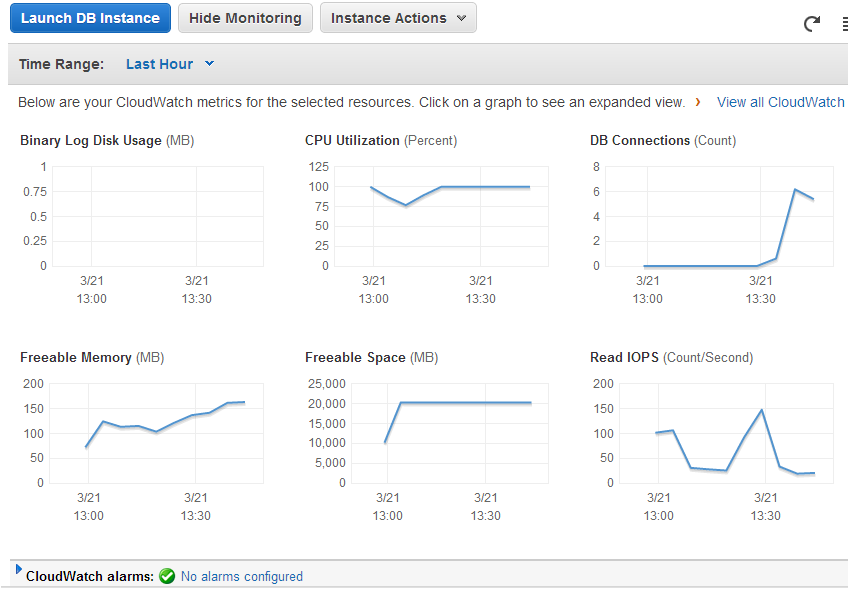
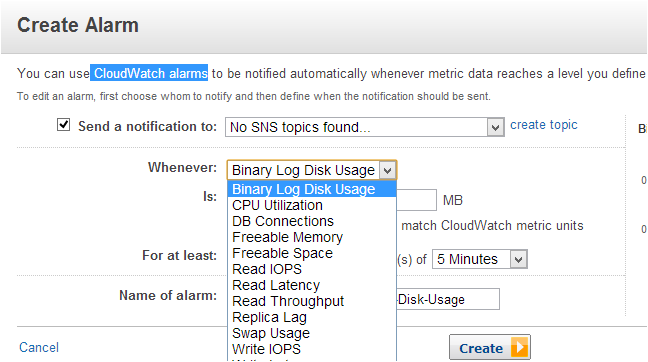
You can setup alarms as well, here is what that looks like
Run some queries, see what works what doesn’t. I decided to run sp_helpdb
sp_helpdb
Here is what I see
No permission to access database ‘model’.
name        db_size    owner   dbid    created
master        4.75 MB   rdsa    1   Apr  8 2003
msdb         14.75 MB   rdsa    4   Feb 10 2012
rdsadmin     11.19 MB   rdsa    5   Mar 21 2013
tempdb        6.81 MB   rdsa    2   Mar 21 2013
That is all for this posts, I will post more once I start messing around with this more
I created two more posts How to read the error log on an Amazon RDS SQL Server instance and Turning on Optimize for Ad hoc Workloads, Ad Hoc Distributed Queries and more on a AWS RDS SQL Server Instance
 Denis has been working with SQL Server since version 6.5. Although he worked as an ASP/JSP/ColdFusion developer before the dot com bust, he has been working exclusively as a database developer/architect since 2002. In addition to English, Denis is also fluent in Croatian and Dutch, but he can curse in many other languages and dialects (just ask the SQL optimizer) He lives in Princeton, NJ with his wife and three kids.