



SQL Server Management Studio and SQL Server Tools alike can become unusable when other installations, multiple installations or even strange operating system level problems occur that remove critical supporting assemblies. When these assemblies either become corrupted or missing, the fix it rather simple in most cases with a simple copy/paste of the assembly in error from the shared directories that were installed initially.
Note: This is step 1 in attempting to fix this type of management tools error. Step 2 and a stable solution is to run a repair on the management tools as well as updating and installing to the latest service pack or related cumulative update. Never, and I mean never, perform this on a production SQL Server during normal operating hours. SSMS and other management tools are typically not required to successfully run the SQL Server Engine. This means the data will still be available to end users. Plan you time carefully and always, and I mean always, have a recovery strategy. Backup databases, Operating System level files, SQL Server directories and all security on the servers. Always assume the worst can happen and the recovery will always be less painful.
Specifically for this blog, the following error was presented while working in SQL Server Management Studio 2008 R2. The installation was in the order as follows.
- SQL Server Engine and Tools 2008 R2 and Service Packs Installed
- Visual Studio 2010 and Service Packs installed.
- Windows 7 updates were run and installed
- Windows was rebooted
- SQL Server Engine tests passed
- SSMS normal operations passed
- SSMS dialog and wizard functions failed with the following error
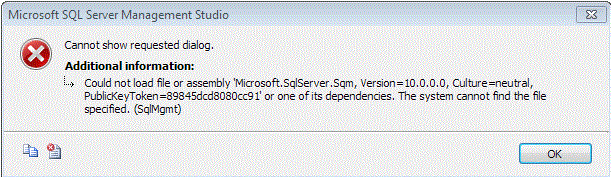
Essentially, this error came up every time properties were selected for any object in the tree in Object Explorer. This included operations such as backup, restore, login, database user configurations as on. Remember, those are all simply wizards and configuration windows executing T-SQL statements in the background. So the Engine is still completely operational but the efficiency of performing tasks slowed greatly. This requires a fix. A planned fix!
Note: Some assemblies may be gone completely for some specific reason. The reasoning is not important but resolving and finding them to place them in the needed locations is. When all else fails, extracting the media to a folder is extremely useful. Extracting media from packaged executables is the same across Microsoft products. Use /x: followed by a full path to the folder to extract the contents to. This dates back to slip streaming service packs to Operation System installations using the –x: switch. For example, to do this with the SQL Server Express with Advanced Tools executable, run the following in command prompt.
<strong>C:UserstkruegerDownloadsSQLEXPRWT_x86_ENU.exe /x:C:SQLExpressWTMedia</strong>
After that operation is complete, you would then find the same DLL that we need to resolve the specific error discussed initially in this article at, C:SQLExpressWTMediax86. Remember to ensure your versions match the installation you are trying to fix.
To fix the exact assembly error on hand, and many other assembly errors related to SSMS, you can turn to the 100shared folder. This folder will have, hopefully, all the assemblies SQL Server Management Studio needs as well as many other Tools dependencies. The assembly can be copied to the IDE folder that the shell uses in the background then.
Open C:Program FilesMicrosoft SQL Server100Shared
For this specific assembly, copy Microsoft.SqlServer.Sqm.dll. Note: Only copy, not cut. The files are required to remain in the shared folder for other dependencies and future upgrade/installations.
Open C:Program FilesMicrosoft SQL Server100ToolsBinnVSShellCommon7IDE
Paste the Microsoft.SqlServer.Sqm.dll into this folder.
Make sure you close SSMS and open it again to reload the assembly correctly. Check to ensure the problem has been resolved. In this case, this did fix the problem and I hope it helps you if you are receiving the same error.