


Policy-Based Management is an addition to SQL Server that allows DBAs to manage multiple SQL Server instances with ease. In previous years and versions, managing hundreds of instances was an exhausting task which typically involved writing a number of custom collection scripts. With policies in place, DBAs can evaluate almost everything that involves the entire SQL Server instance from the configurations of SQL Server itself to the databases that reside on the instance.
Recently the question was raised on how Policy-Based Management could be utilized to evaluate the history settings for SQL Server Agents running. Since the SQL Server Agent is an external component to SQL Server, I was unable to find a ¡§canned¡¨ condition in order to evaluate targets with a policy.
One solution to handle this is to utilize the Executesql() function in a condition by reading the registry settings in which the agent holds all of these settings.
Note: In order to retrieve registry values, xp_instance_regread is required. If policies are in place preventing this from being utilized, other windows scripting or Power Shell methods should be utilized. Power Shell would be a very good option for this task.
Returning the agent job history
To return the setting of the maximum rows that will be retained in history for each job, look to the registry value of JobHistoryMaxRowsPerJob under HKEY_LOCAL_MACHINESOFTWAREMicrosoftMSSQLServerSQLServerAgent
Note: to return all of the agent settings, execute stored procedure: Exec sp_get_sqlagent_properties. This system procedure will execute a series of xp_instance_regread statements to return all the settings from the registry. You can also use sp_helptext to view the code for this procedure and quickly locate other registry entries of interest
To return the JobHistoryMaxRowsPerJob, run the following
DECLARE @jobhistory_max_rows_per_job INT

EXECUTE master.dbo.xp_instance_regread N'HKEY_LOCAL_MACHINE',
             N'SOFTWAREMicrosoftMSSQLServerSQLServerAgent',
             N'JobHistoryMaxRowsPerJob',
             @jobhistory_max_rows_per_job OUTPUT,
             N'no_output'

SELECT @jobhistory_max_rows_per_job
This statement on a base installation of SQL Server with all defaults left in place returns 1000. Now that we know how to return the value we can create the policy to evaluate the settings with Policy-Based Management.
Creating a Policy
Policies can be created either with T-SQL or SSMS. In T-SQL, the following system procedures are utilized to create a basic policy.
- sp_syspolicy_add_condition
- sp_syspolicy_add_object_set
- sp_syspolicy_add_target_set
- sp_syspolicy_add_policy
These system procedures are not well documented as you will find in Books Online. SSMS is commonly the primary tool for creating, editing and viewing policies. To view how the system procedures are utilized, script out policies and conditions to better understand what SSMS executes behind the management tools.
With SSMS, the task of handling the syntax of using executesql() is far easier to achieve a successfully parsed statement. This comes is even more relevant when quotes are required in your T-SQL statements. With SSMS and the query entry windows, single apostrophes are set to multiple apostrophes as needed when the query is saved and parsed. If you were to enter two apostrophes such as “ to equate to ‘, this would require four to execute properly in a direct procedure call.
To set the policy up with SSMS, Right click policies in SSMS under the Management node and click, New Policy¡K
In the Create New Policy wizard enter the name, CheckAgentMaxRowsPerJob.
Select the drop down for Check condition and select New Condition. Use the name CheckAgentMaxRowsPerJob. Select Server or Server Information for the facet and then click the button to open the Field editor. In the Cell Value window that opens, enter the following condition into the window.
Note that we double single quotes so they are parsed as single quotes on the execution of the executesql() function
ExecuteSql('Numeric', 'DECLARE @jobhistory_max_rows         INT

EXECUTE master.dbo.xp_instance_regread N''HKEY_LOCAL_MACHINE'',
             N''SOFTWAREMicrosoftMSSQLServerSQLServerAgent'',
             N''JobHistoryMaxRows'',
             @jobhistory_max_rows OUTPUT,
             N''no_output''

SELECT @jobhistory_max_rows')
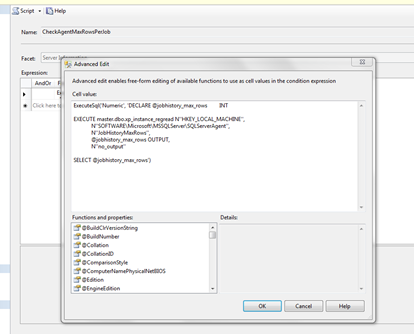
Click OK and then leave = as the operator and enter a value of 10 for this example setup.
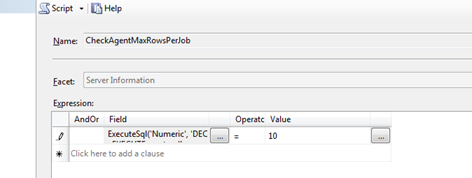
Click OK to save the Policy. This set of instructions created a policy and a condition that should be shown now under the Management„³Policy Management„³Policies and Conditions nodes in Object Explorer of SSMS.
All that remains now is to test the policy by forcing an evaluation of the target (local in this case) instance.
Right click the policy and select Evaluate. This opens the Evaluate Policies window and should have the policy we just create selected. If it is not, check the policy in the Policies window.
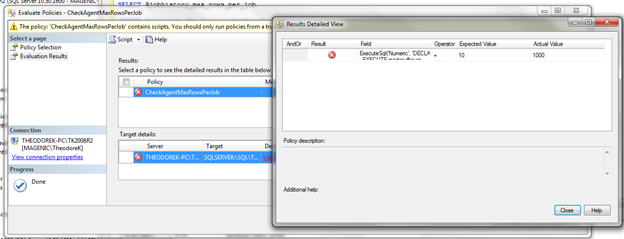
To now test the policy, click the Evaluate button to the lower right of the window. If your instance has the default value of 1000 set for maximum rows to retain in history per jobs, you should have received red marks on the policy. To view the details of this failed evaluation, click the details view link in the target details area.
We can see that the policy evaluation returned the actual value of 1000 while it was expecting 10.
Closing
Policy-Based Management has enabled administrators to manage a vast amount of instances while taking into account almost all the configurations required monitoring and events that may occur with SQL Server. This ability has made administration more efficient all around with managing multiple SQL Server instances.